Does a Dash Cam Connect to Your Phone?
Yes, your dash cam connects to your phone through Wi-Fi or Bluetooth, letting you access live footage, recordings, and settings conveniently via a dedicated app. This connection makes it super easy to manage your dash cam without needing to remove memory cards. Wi-Fi offers faster transfers and direct dash cam control, while Bluetooth uses less power for basic functions.
You can instantly view, download, and share videos right from your phone. Connection issues are usually easy to fix with simple troubleshooting steps. Keep exploring to discover setup tips, connection methods, and more benefits that make using a dash cam with your phone a breeze!
Key Takeaways
- Many dash cams connect to phones via Wi-Fi or Bluetooth for easy access and control through dedicated apps.
- Dash cam apps let you watch live footage, play back videos, and even update the firmware right from your phone.
- Wi-Fi connections are great because they allow faster video transfers and provide a stable, high-bandwidth link between your dash cam and phone.
- On the other hand, Bluetooth is simpler to pair and uses less power, but it’s slower when it comes to transferring files compared to Wi-Fi.
- Using the phone app means you don’t have to remove memory cards anymore.
- This makes it super easy to instantly review and share your videos whenever you want.
How Dash Cams Connect to Your Phone: Wi-Fi, Bluetooth, and More
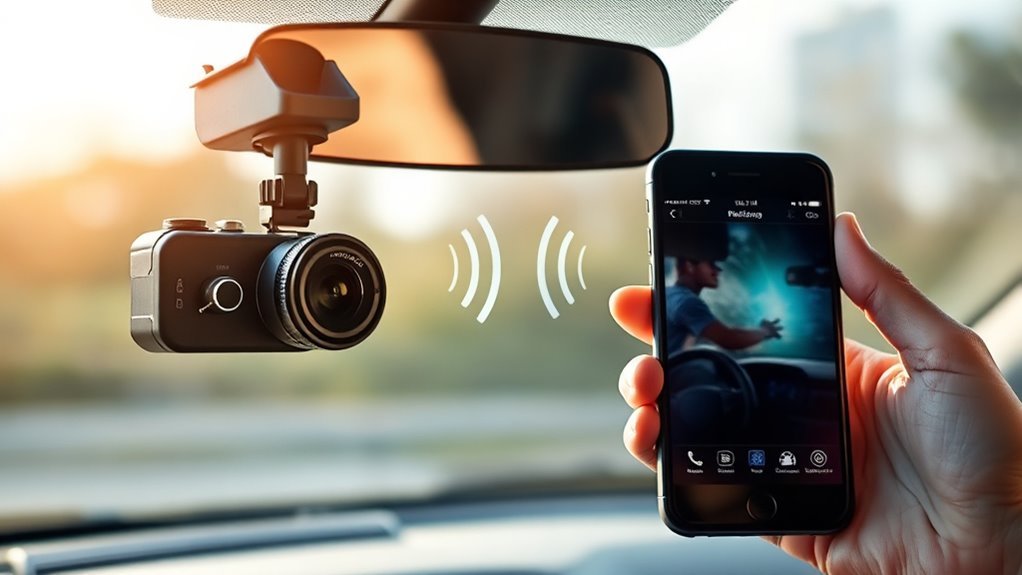
When connecting a dash cam to your phone, you’ll typically use Wi-Fi or Bluetooth, each offering different benefits. Wi-Fi lets you transfer larger video files faster and gives you direct access to the dash cam’s interface through an app. This connection is ideal when you want to review or download footage quickly.
Bluetooth, on the other hand, consumes less power and maintains a steady connection for basic controls or notifications. It’s slower for transferring files, though, so keep that in mind.
Some dash cams also support USB connections, letting you plug the device directly into your phone for reliable, high-speed data transfer. Understanding these options helps you choose the best method depending on whether you prioritize speed, convenience, or battery life when connecting your dash cam to your phone.
How to Set Up Your Dash Cam App on Your Phone

First, you’ll need to download the dash cam app from your phone’s app store. Once installed, turn on your dash cam and connect it to your phone via Wi-Fi or Bluetooth.
This setup lets you access footage and control settings right from your device. It’s pretty handy, don’t you think?
Downloading The Dash Cam App
To get your dash cam up and running with your phone, you’ll need to download the official app designed for your device. Start by identifying the brand and model of your dash cam, then search for its app in your phone’s app store.
Once you find it, just follow these simple steps:
- Open the App Store (iOS) or Google Play Store (Android).
- Search for the dash cam’s official app by name.
- Check app reviews and compatibility with your phone.
Next, tap “Download” or “Install” to begin the process. Wait for the app to fully install before opening it.
Downloading the correct app makes sure you get the latest features and firmware updates. This way, your dash cam experience stays smooth and efficient.
Connecting Camera To Phone
Launch the dash cam app on your phone and activate the camera’s Wi-Fi or Bluetooth connection to link the two devices. Once the dash cam’s wireless signal is on, go to your phone’s Wi-Fi settings, find the dash cam network, and connect.
If your device uses Bluetooth, pair your phone with the dash cam from the Bluetooth menu. After establishing a connection, return to the app, which should recognize the camera automatically.
Follow any on-screen prompts to complete the setup, such as setting preferences or confirming firmware updates. Once connected, you can view live footage, download videos, and adjust settings directly from your phone.
This setup process usually takes just a few minutes, ensuring you’re ready to monitor and manage your dash cam with ease. It’s pretty straightforward!
Wi-Fi vs. Bluetooth: Which Is Best for Your Dash Cam?
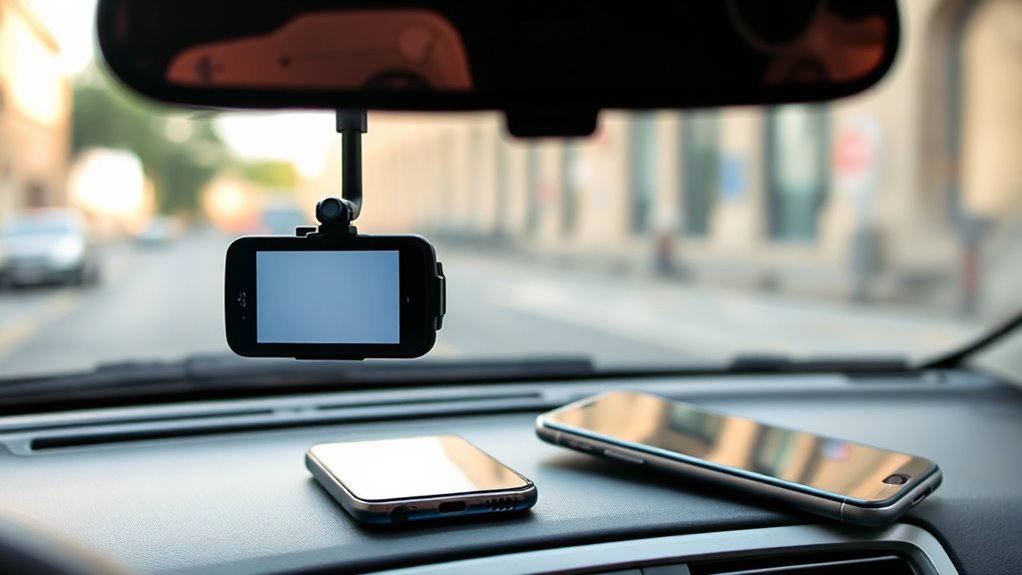
You’ll often find that connecting your dash cam to your phone involves choosing between Wi-Fi and Bluetooth, each offering distinct advantages. Wi-Fi usually provides faster data transfer, which is great for handling large video files.
Connecting your dash cam to your phone means choosing Wi-Fi for speed or Bluetooth for convenience.
Bluetooth, on the other hand, is excellent for low-energy connections and ease of use. Think about these points when deciding which suits you best:
- Wi-Fi enables quicker footage transfers.
- Bluetooth conserves phone battery life.
- Wi-Fi supports more stable high-bandwidth connections.
- Bluetooth offers simpler pairing processes.
- Wi-Fi can cover longer distances within your vehicle.
So, if you want speed and reliability for heavy transfers, Wi-Fi is your go-to. But if you prioritize convenience and power saving for quick interactions, Bluetooth might be better.
Choose based on how you plan to use your dash cam daily.
Viewing, Downloading, and Sharing Dash Cam Footage on Your Phone
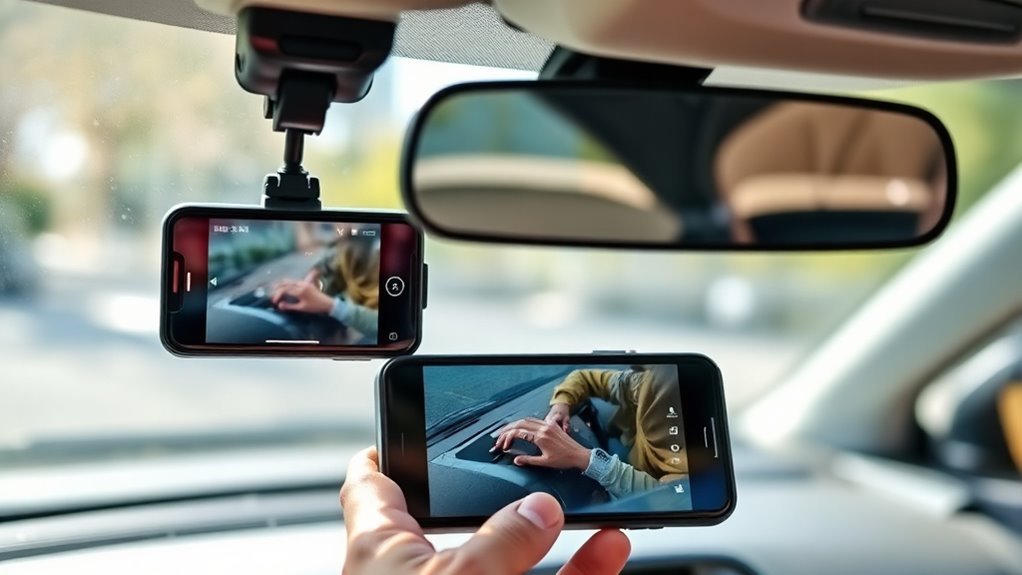
Accessing your dash cam footage on your phone lets you quickly review, download, and share important moments right from the palm of your hand. Once connected via Wi-Fi or Bluetooth, open the dash cam’s app to browse recorded videos.
You can watch clips instantly, zoom in on details, or mark key moments for easy retrieval. When you find footage you want to keep, simply download it to your phone’s gallery. This makes it easy to back up files or free up space on your dash cam’s memory card.
Sharing is just as simple—use the app to send videos via text, email, or social media. This seamless process guarantees you always have access to vital evidence or memorable drives.
Troubleshooting Common Phone Connection Issues With Dash Cams
If your phone won’t pair with your dash cam via Bluetooth, try resetting both devices and checking for updates. Sometimes app compatibility issues can block connection, so make sure your app is up to date and supported by your phone’s operating system.
Also, if your Wi-Fi connection keeps dropping, make certain you’re within range and avoid interference from other devices. It can be frustrating, but these simple steps usually do the trick. Give them a shot!
Bluetooth Pairing Problems
Although Bluetooth pairing can simplify connecting your phone to a dash cam, it sometimes runs into issues that disrupt the connection process. If you’re struggling, don’t worry—you can troubleshoot common problems quickly.
First, make sure Bluetooth is enabled on both devices. Next, check if your dash cam is discoverable or in pairing mode. Sometimes, interference from other wireless devices causes issues.
Also, verify that no previous pairings are blocking new connections; clearing old pairings might help. Finally, make certain both devices have sufficient battery since low power can affect Bluetooth performance.
Here’s a quick checklist to fix Bluetooth pairing problems:
- Turn Bluetooth off and on again
- Restart both your phone and dash cam
- Keep devices close during pairing
- Remove any existing paired devices from the list
- Update firmware and software when available
App Compatibility Issues
When setting up your dash cam with your phone, app compatibility issues can throw a wrench in the process and prevent a smooth connection. First, make sure your phone’s operating system supports the dash cam’s app. Some apps only work on specific versions of iOS or Android.
Also, check if the app is updated to the latest version; outdated apps often cause glitches or fail to recognize the device. If your phone is too old, it might not meet the app’s minimum requirements.
Additionally, verify that you’ve downloaded the official app from the manufacturer, as unofficial versions can lead to connection failures. If problems persist, reinstall the app or restart your phone to clear any temporary software conflicts.
Wi-Fi Connection Drops
Wi-Fi connection drops can throw off your dash cam’s link to your phone, making it frustrating to access live footage or download videos. When the connection falters, try these quick fixes to get back on track:
Move your phone closer to the dash cam to improve signal strength. Restart both your phone and dash cam to refresh the Wi-Fi connection.
Check for any app updates that might fix compatibility glitches. Also, try disabling other devices connected to your phone’s Wi-Fi to reduce interference.
If that doesn’t work, reset the dash cam’s network settings and then reconnect to your phone’s Wi-Fi. That usually does the trick!
Benefits of Using a Phone-Connected Dash Cam System
Because your phone is always within reach, connecting your dash cam to it makes accessing footage quick and effortless. You won’t have to fumble with memory cards or remove the dash cam to review recordings.
This convenience lets you instantly check videos after incidents or odd events. That way, you don’t miss critical moments.
Plus, the phone connection often enables real-time live viewing, so you can monitor your surroundings remotely.
You’ll also find it easier to update firmware and adjust settings through a user-friendly app. It saves you time and hassle.
Frequently Asked Questions
Can Dash Cams Record Audio Along With Video Footage?
Yes, many dash cams record audio along with video footage. You can usually enable or disable the microphone in settings.
Do Dash Cams Work in Extreme Weather Conditions?
Yes, many dash cams work in extreme weather conditions, but you should check their temperature ratings.
Some models have built-in heating or cooling features to guarantee reliable performance in both hot summers and freezing winters.
It’s always a good idea to make sure your dash cam can handle the climate where you live. That way, you won’t have to worry about it failing when you need it most.
How Long Can a Dash Cam Record Continuously?
Your dash cam can record continuously like a tire rolling on a long highway, usually for several hours to days, depending on storage capacity and loop recording settings.
You’ll want to check your model’s limits for precise duration. It really varies from one device to another.
Are Dash Cam Videos Legally Admissible in Court?
Yes, dash cam videos are usually admissible in court as evidence. You’ll want to make sure the footage is clear, unedited, and relevant.
It’s a good idea to check your local laws, though, since rules can vary by jurisdiction. Better safe than sorry!
Can Multiple Phones Connect to One Dash Cam Simultaneously?
Yes, you can connect multiple phones to one dash cam simultaneously, but don’t worry about interference—it’s designed to handle several connections smoothly.
This lets you and others easily access footage without hassle or delay.
Conclusion
So, does a dash cam connect to your phone? Absolutely! Whether through Wi-Fi or Bluetooth, connecting your dash cam to your phone puts control and convenience right at your fingertips.
Imagine having instant access to your footage anytime you want—no more fumbling with memory cards. With a little setup, your phone becomes the command center for safety and peace of mind on the road.
Why wait? Your dash cam and phone are a perfect pair! Connecting your dash cam to your phone not only makes viewing and managing videos effortless but also enhances your driving experience. It’s all about keeping you informed and secure, with easy access right from your smartphone. So, if you’re wondering, “Does a dash cam connect to your phone?” the answer is a big yes—and it’s worth every bit of the convenience it brings!