10 Ways You Can Turn Off Dash Cam Audio
You can turn off your dash cam’s audio by toggling off the microphone or audio option in the settings or the companion app. This is usually the quickest way to stop recording sound. Some dash cams even have a dedicated mute button or quick settings to silence audio instantly.
If you want to go further, you can physically block or disconnect the built-in mic. Another option is to update your firmware, as newer versions may offer improved audio controls. Don’t forget to check your privacy settings too, since you can often disable audio recording there.
After you’ve recorded a video, you can also remove audio using video editing software. And if you’re looking for total silence with no hassle, consider purchasing models that don’t record audio at all. Keep exploring these options to find the best way to turn off your dash cam’s audio.
Key Takeaways
- Toggle off the microphone or audio recording in your dash cam settings or companion app. This way, you can easily disable sound capture during recording.
- You can also press the physical mute button or use quick control menus. This instantly mutes audio without stopping the video recording.
- Another simple trick is to cover the built-in microphone. Use tape, foam, or even a silicone cover to physically block sound input.
- If your dash cam design allows it and your warranty permits, try disconnecting or unplugging the internal or external microphone.
- Lastly, you can remove audio tracks after recording. Use video editing software to mute or delete sound from your saved footage.
Check Your Dash Cam Settings for an Audio Toggle
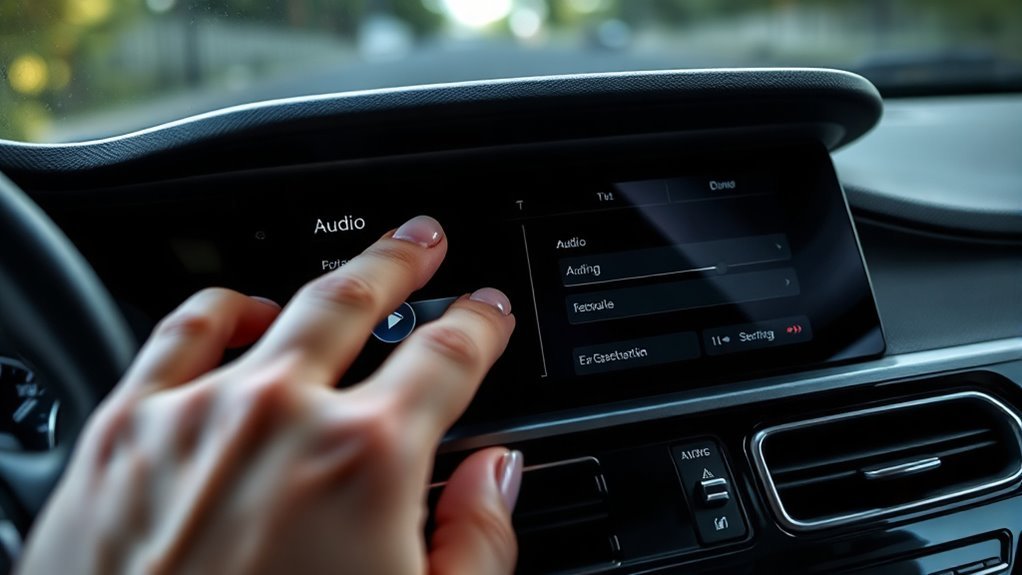
Before diving into more complex solutions, check your dash cam settings for an audio toggle. Most dash cams offer an option to enable or disable audio recording right in the menu.
You can usually access it by pressing the settings button on your device or through the companion app if your dash cam supports one. Look for terms like “Microphone,” “Audio,” or “Sound Recording.”
Once you find the toggle, simply switch it off to stop the dash cam from capturing any sound. This method saves you from unnecessary hardware adjustments or complicated steps.
It’s quick, straightforward, and reversible. If you want to test it, record a short video and play it back to make certain the audio is truly muted before you hit the road.
Use the Mute Button to Silence Dash Cam Audio

You can quickly silence your dash cam audio by pressing the mute button, usually located on the device’s side or front. This lets you stop recording sound immediately without changing settings.
Muting helps protect your privacy and reduces distractions while driving. It’s a simple way to keep things quiet when you need it.
Locating The Mute Button
Finding the mute button on your dash cam is usually straightforward and can quickly silence the audio recording. Most dash cams have a clearly labeled mute button on the side or front panel, often marked with a speaker icon or the word “Mute.”
If you don’t see a dedicated button, check the touchscreen menu, where audio options are commonly found. Sometimes, the mute function is combined with the volume control or accessible through a quick settings shortcut.
If you’re unsure, consult your dash cam’s user manual or manufacturer’s website for exact button locations. Knowing where the mute button is lets you silence audio easily whenever needed, without having to dig through complicated settings or pause your recording.
Immediate Audio Silencing
Pressing the mute button instantly cuts off the dash cam’s audio recording, giving you immediate control over sound capture. When you hit this button, the microphone stops picking up any sounds inside or outside your vehicle.
This feature is perfect for situations where you want to maintain privacy or avoid recording background noise. Most dash cams place the mute button in an accessible spot, so you can quickly silence audio without navigating complex menus.
Once muted, your video continues recording silently, preserving visual evidence without capturing conversations or ambient sounds. If you need to resume audio recording, simply press the mute button again.
This straightforward method guarantees you can manage your dash cam’s audio in real-time with minimal effort.
Benefits Of Muting
Many drivers appreciate how muting their dash cam audio instantly enhances privacy and reduces distractions. When you use the mute button, you prevent background conversations or noises from being recorded, protecting sensitive information.
This is especially useful during private discussions or when passengers are talking. Muting also helps you focus on the road without unnecessary audio clutter, improving your driving experience.
Additionally, if you live in an area with strict audio recording laws, muting your dash cam guarantees you stay compliant. It’s a simple step that gives you control over what’s captured, helping maintain your peace of mind.
Disable Audio Recording in the Dash Cam App
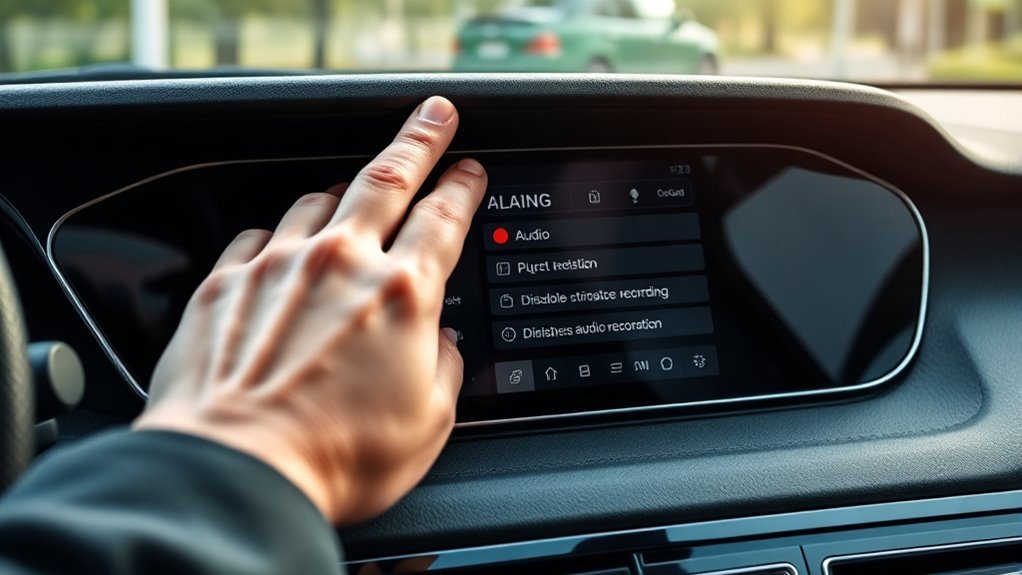
You can easily disable audio recording by accessing the dash cam app’s audio settings. Just navigate to the recording options and switch off the microphone feature.
Don’t forget to save your preferences to make certain the changes take effect. It’s a quick way to ensure your dash cam only captures video without any sound.
Accessing Audio Settings
Navigate to the settings menu in your dash cam app to find the audio options. Once there, look for a section labeled “Audio,” “Sound,” or “Microphone.” Tap on it to access controls related to audio recording.
You’ll typically see a toggle switch or checkbox that enables or disables audio capture. Simply turn off this option to stop your dash cam from recording sound.
Some apps may offer additional settings like volume control or audio alerts, but you can ignore those if you only want to disable audio recording. After adjusting the settings, make sure to save or apply the changes before exiting the menu.
This straightforward process helps you control your dash cam’s audio recording without hassle, ensuring your recordings stay silent when you want them to be.
Navigating Recording Options
To turn off audio recording in your dash cam app, explore the recording options menu where these settings are usually grouped. Once there, you’ll find controls that let you toggle audio on or off quickly.
Look for an option labeled something like “Audio Recording,” “Microphone,” or “Sound.” Simply switch it off to disable audio capture during your video recordings.
Here are some tips to help you navigate this process:
- Check for a microphone icon that indicates audio status.
- Some apps let you mute audio per recording session or globally.
If your app has advanced settings, explore them for audio sensitivity or volume controls.
With just a few taps, you can easily stop your dash cam from recording sound. It’s pretty straightforward once you know where to look!
Saving Audio Preferences
Saving your audio preferences guarantees the dash cam app remembers your choice to disable audio recording every time you start a new session. To do this, open the app and navigate to the settings menu where audio options are located.
Look for a toggle or checkbox labeled “Record Audio” or similar. Switch it off to disable audio recording. After adjusting, make sure to hit “Save” or “Apply” to confirm your changes.
This step guarantees the app won’t revert to the default setting, which often includes audio recording. If your app auto-updates or resets, just revisit these settings to verify your preferences remain intact.
Adjust Privacy Settings to Disable Audio Capture
Although your dash cam might automatically record audio, you can easily adjust the privacy settings to disable this feature. Most dash cams include a straightforward option in the settings menu that lets you turn off audio recording without affecting video capture.
Just navigate to the privacy or audio section, and toggle off the microphone or audio capture feature.
Here’s how to do it quickly:
- Access the dash cam’s settings menu via the device screen or companion app.
- Locate the privacy or audio settings tab.
- Disable the audio recording option by toggling it off or unchecking the box.
Cover or Disconnect the Built-In Microphone
If you want to make sure your dash cam stops recording audio, you can physically cover the built-in microphone with tape or a sticker.
Another option is to disconnect the microphone internally if your model allows it. Both methods offer a straightforward way to block audio capture without relying on software settings.
It’s a simple fix that doesn’t require any tech skills. Just pick the method that works best for you!
Physical Microphone Block Methods
When you want to silence your dash cam’s audio, physically blocking or disconnecting the built-in microphone offers a straightforward solution. This method doesn’t require fiddling with settings or software, making it quick and effective.
You can simply stop the mic from picking up sound by creating a barrier or detaching it if possible. Here are some physical microphone block methods you might try:
- Place a small piece of tape (like electrical or duct tape) over the microphone hole to muffle sound.
- Use a tiny foam or silicone cover designed for microphones to block audio input.
- Gently insert a soft material like cotton or felt to obstruct sound without damaging the mic.
These options help make certain your dash cam records video only, respecting your privacy. Easy, right?
Microphone Disconnection Techniques
Explore simple microphone disconnection techniques to guarantee your dash cam stops capturing audio altogether.
One effective method is to physically disconnect the built-in microphone if your model allows it. This usually involves opening the dash cam casing and unplugging the microphone cable or removing the microphone module itself.
If you’re not comfortable with disassembling your device, consider using a small piece of electrical tape to cover the microphone hole completely. This blocks sound input without permanent modification.
Some dash cams have external microphones, making unplugging easier—just detach the external mic from the port.
Always check your dash cam’s manual before attempting disconnection to avoid voiding warranties or causing damage.
These methods make certain your dash cam captures video only, respecting your privacy by eliminating audio recording.
Format the SD Card to Reset Audio Settings (Last Resort)
Although resetting audio settings through the menu usually works, you might need to format the SD card to fully clear any persistent sound configurations. Formatting erases all saved data and returns the card to its default state, which can fix stubborn audio issues.
Before you proceed, back up any important footage to avoid losing it.
Here’s how to format your SD card safely:
- Insert the SD card into your dash cam or computer.
- Access the dash cam’s settings menu and select “Format SD Card” or use your computer’s formatting tool.
- Confirm the action and wait until the process completes.
After formatting, your dash cam’s audio settings should reset, giving you a fresh start without unwanted sound recording. It’s a bit of a last resort, but sometimes it’s the only way to clear things up.
Update Firmware to Access New Audio Controls
Since manufacturers often add new features and bug fixes through updates, updating your dash cam’s firmware can reveal improved audio controls. To get started, check your dash cam’s official website or app for the latest firmware version.
Follow the update instructions carefully to avoid issues. Once updated, you might find new settings allowing you to mute or reduce microphone sensitivity directly within your device’s menu.
| Step | Action |
|---|---|
| 1 | Visit manufacturer’s website |
| 2 | Download latest firmware |
| 3 | Connect dash cam to computer |
| 4 | Install firmware update |
| 5 | Access new audio control menu |
Keeping firmware current guarantees you have the latest tools to manage dash cam audio efficiently. So, it’s a good idea to check for updates regularly.
Use Software to Remove Audio From Recorded Videos
When you want to keep your dash cam footage but remove distracting audio, using software to strip sound from recorded videos is an effective solution. You don’t need fancy tools—many free or affordable apps can quickly mute or delete the audio track without affecting video quality.
Removing distracting audio from dash cam footage is easy with free or affordable software that preserves video quality.
This method lets you preserve visual evidence while eliminating background noise or unwanted conversations. It’s pretty handy when you want the focus on the video, not the noise.
Here are easy ways to remove audio from your dash cam videos:
- Use video editing software like iMovie, Windows Movie Maker, or VLC to mute or detach the audio track.
- Convert the video format with tools that allow audio removal during export.
- Try dedicated apps designed for audio stripping, which often offer batch processing.
With these options, you control your footage’s privacy and clarity effortlessly. It’s all about making your videos work best for you.
Consider Dash Cam Models Without Audio Recording for Future Use
Choosing a dash cam model without audio recording can save you time and hassle down the road. If you want to avoid dealing with muting audio or editing videos later, picking a camera designed to skip audio capture is a smart move.
These models focus solely on video, so you won’t have to worry about privacy concerns or legal issues related to recording conversations. When shopping, look for features that explicitly mention “no audio recording” or “audio disabled.”
This way, you won’t need to adjust settings or use extra software to remove sound. By selecting the right device upfront, you simplify your experience and make certain your recordings only capture what matters—the road ahead.
It’s a straightforward way to keep things simple and compliant. Makes the whole process a lot easier, right?
Consult the Dash Cam Manual for Audio Options
If you want to disable audio recording on your dash cam, the manual is your best starting point. It provides specific instructions tailored to your model, making the process straightforward.
Instead of guessing or risking damage, refer to it for precise guidance.
Look for sections like:
- Audio Settings: Where you can toggle sound recording on or off.
- Firmware Features: Some models update audio options through firmware.
- Troubleshooting Tips: Helpful if the audio switch isn’t working as expected.
Frequently Asked Questions
Does Turning off Audio Affect Video Quality?
Turning off audio doesn’t affect your dash cam’s video quality. You’ll still get the same clear visuals, but without sound.
It simply stops recording audio to save space or maintain privacy. This way, your video stays sharp and intact.
Can I Disable Audio Recording on Multiple Dash Cams Simultaneously?
You can disable audio recording on multiple dash cams simultaneously, especially if they share the same app or system.
It’s convenient how managing settings for several devices at once saves you time and hassle.
Makes the whole process way easier, don’t you think?
Is It Legal to Record Video Without Audio in My State?
You can usually record video without audio legally, but it depends on your state’s laws. Some states require consent for audio recording, so check your local regulations to avoid privacy issues or legal trouble.
It’s always a good idea to be sure before you record. That way, you stay on the safe side and respect others’ privacy.
Will Disabling Audio Void My Dash Cam Warranty?
Disabling audio won’t automatically void your dash cam warranty; it’s like flipping a switch within design limits. Just make sure you follow the manufacturer’s guidelines—otherwise, tampering might risk losing that protection you rely on.
How Do I Know if My Dash Cam Has a Microphone?
You’ll know if your dash cam has a microphone by checking its specifications or user manual. Look for terms like “audio recording,” “built-in mic,” or icons indicating sound features on the device or packaging.
If you’re still unsure, try browsing the manufacturer’s website or searching for your dash cam model online. Sometimes user reviews or Q&A sections can also give you a clear answer.
Conclusion
Did you know that over 60% of dash cam users prefer turning off audio to protect privacy? By following these simple steps—like adjusting settings, muting the mic, or updating firmware—you can easily silence your dash cam’s audio.
Whether you want to keep conversations private or avoid recording background noise, you’ve got plenty of options. It’s easier than you might think to take control of your dash cam’s sound.
Taking control of your dash cam’s audio guarantees your recordings capture just what you want, nothing more. So, if you’re looking to turn off dash cam audio, you can do it quickly and effectively by exploring the settings or using other handy methods. This way, your dash cam will focus on video only, helping you protect your privacy and avoid unwanted noise in your recordings.