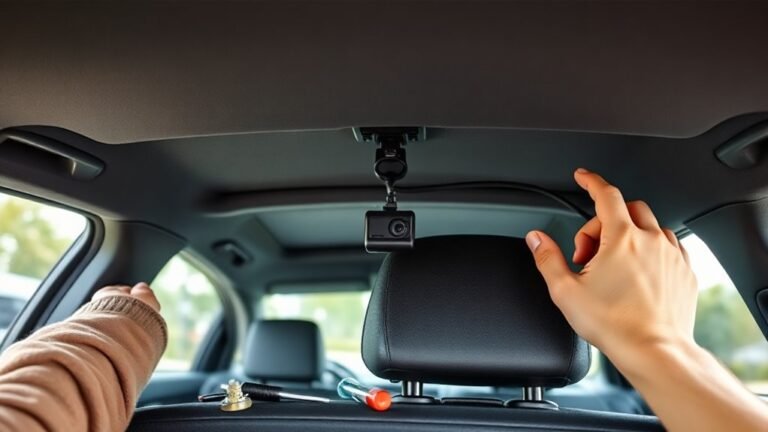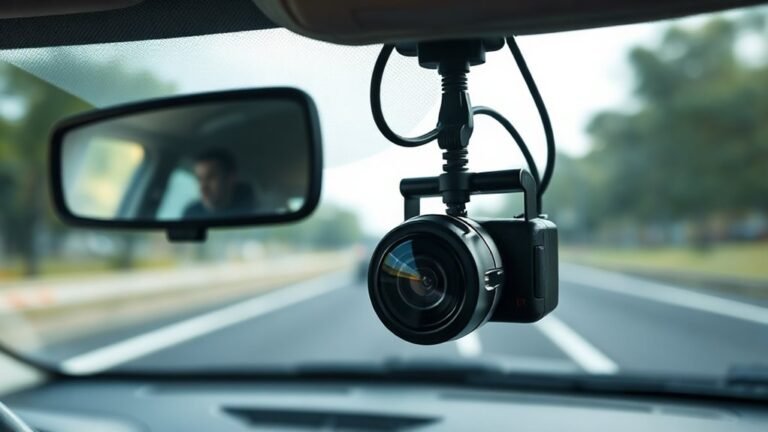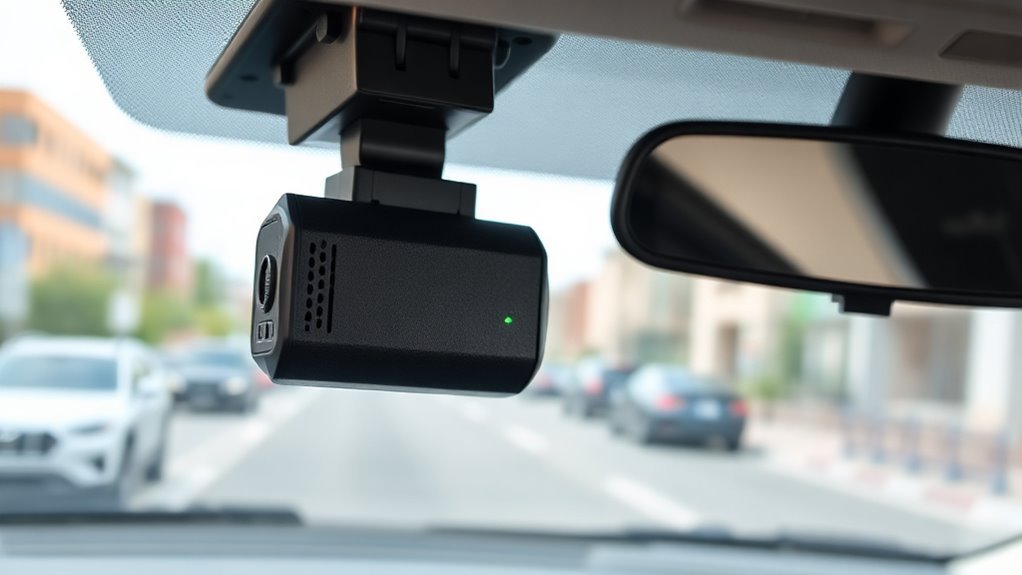
Does a Dash Cam Record Sound?
Yes, many dash cams do record sound through a built-in microphone, so you can capture cabin talk, traffic noise, sirens, and crash details along with video.
Recording audio along with video helps create a clearer picture of what’s happening during your drive. Audio is usually saved with the clip on the memory card, and you can often turn it on or off in the settings or app.
Since laws and privacy rules vary, you should check local consent rules before using it. It’s important to know when and where recording audio is allowed to avoid any legal issues.
If you keep going, you’ll see how to manage it well.
Key Takeaways
- Many dash cams do record sound with a built-in microphone, but not all models include audio. Audio is usually saved with the video file or on the same memory card.
- You can often turn the microphone on or off in the camera settings or app. Sound recording captures voices, traffic noise, sirens, and other events. But keep in mind, the quality depends on mic placement and noise levels.
- Also, it’s a good idea to check local privacy and consent laws before enabling audio recording, especially if you have passengers. Better to stay on the safe side!
Does a Dash Cam Record Sound?
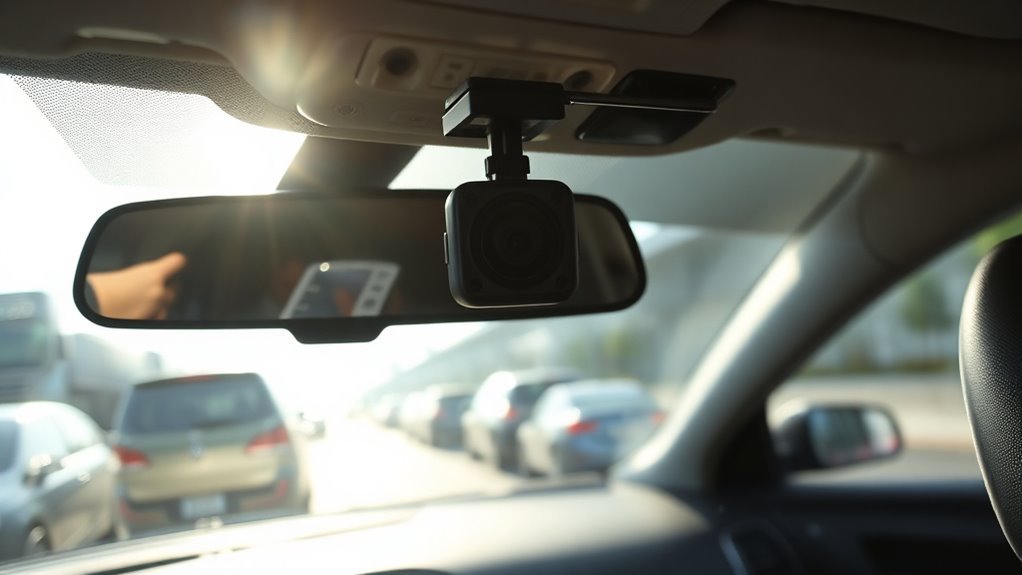
Yes, many dash cams do record sound, and some even let you turn the microphone on or off. You might assume a camera only captures video, but built-in audio can add important context to a drive.
If you’re involved in an accident, spoken details, road noise, or nearby conversations may help clarify what happened. Still, not every model includes this feature, so you should check the specifications before you buy.
You may also want to confirm whether your dash cam stores audio with each clip and how easy it is to disable recording when you want privacy. In short, sound recording is common, useful, and worth considering when you choose a dash cam for your vehicle.
How Dash Cam Audio Recording Works
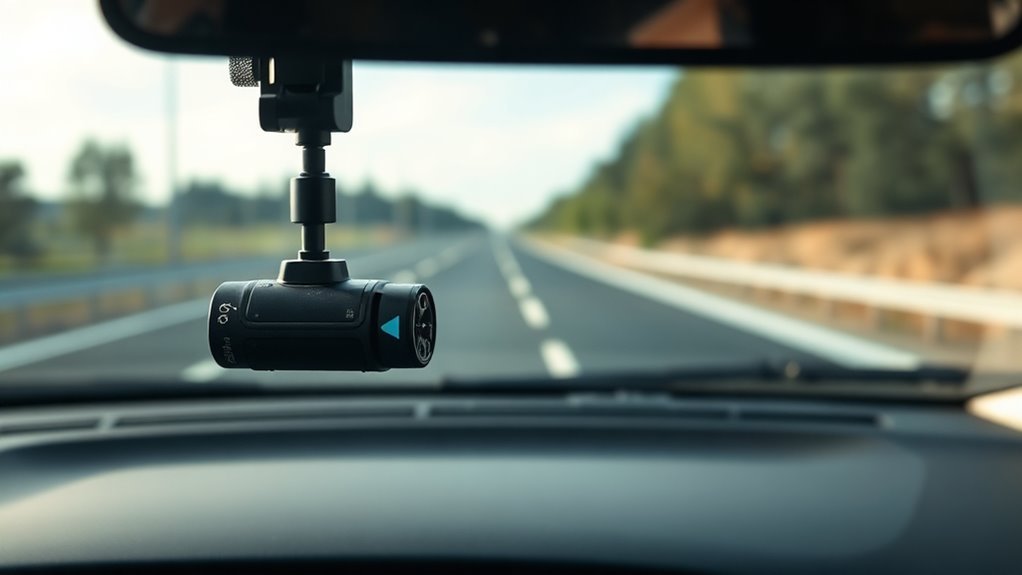
Your dash cam records sound through a built-in microphone, and you can usually turn this feature on or off in the settings. When it’s enabled, the mic captures voices, traffic noise, and other sounds near your car.
That audio then gets saved with the video file, so you’ll need enough storage space for both. It’s pretty handy if you want to catch more than just the visuals while you’re driving.
Audio Recording Features
Most dash cams can record sound through a built-in microphone that captures audio along with the video feed. You can usually enable or disable this feature in the settings menu, so you stay in control of what gets recorded.
Audio adds context when you review a trip, helping you hear traffic noise, sirens, voices, or sudden events that the video alone might miss.
- Check whether your camera lets you toggle audio recording on or off.
- Use audio to capture useful details during accidents or road incidents.
- Review recordings with both sight and sound for a clearer picture.
When you know how your dash cam handles sound, you can use it more effectively and decide when audio fits your needs.
Microphone And Storage
A dash cam records sound through a small built-in microphone that picks up nearby audio while the camera captures video. You’ll usually find the mic near the lens, so it can capture voices, traffic noise, and sudden impacts without extra setup.
The audio then gets saved with the video file, either on the same memory card or in a separate track, depending on the model.
| Feature | What it does |
|---|---|
| Microphone | Captures sound inside and around your car |
| Storage | Saves audio with video clips |
| Loop recording | Overwrites old files when space runs out |
| File protection | Locks important clips from deletion |
If you want clearer sound, check your settings and keep the microphone unobstructed.
Wind, engine noise, and cabin chatter can affect quality, so placement matters. It’s worth taking a little time to find the best spot for your mic.
How to Turn Dash Cam Audio On or Off
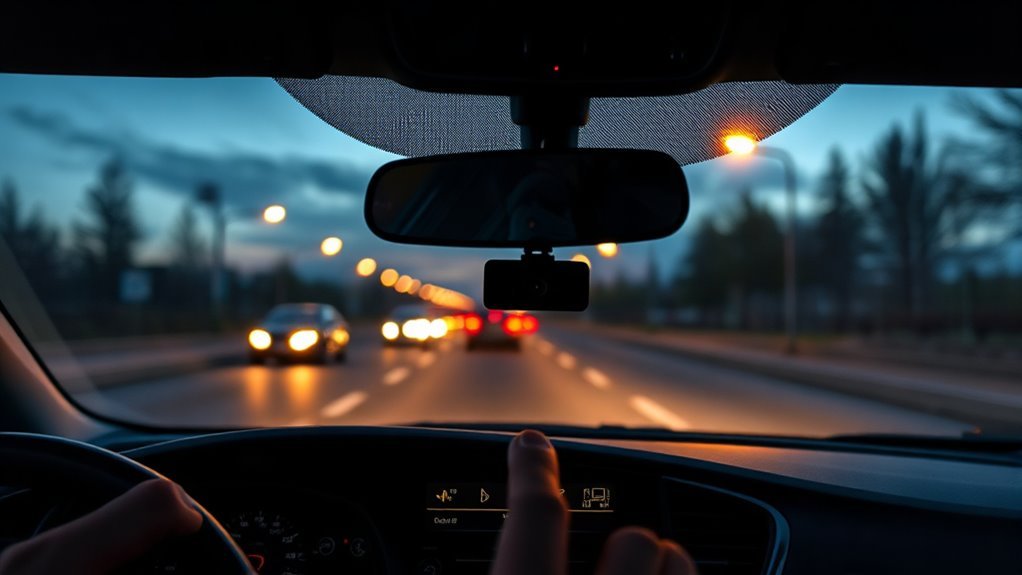
To turn your dash cam’s audio on or off, first find the audio settings in the camera’s menu. From there, you can enable or mute sound with a quick tap or toggle, depending on the model.
You should also check the recording indicator so you know whether the microphone is active. It’s a good way to make sure your audio is set just the way you want.
Find Audio Settings
Next, check your dash cam’s audio settings in the menu, app, or companion software. You’ll usually find them under Recording, Sound, or System options, depending on the brand.
If you’re using a phone app, open the device settings page and look for microphone or audio controls. On a screen-equipped camera, tap through the menus until you see a speaker or mic icon.
For quick reference, note these places first:
- Main camera menu
- Mobile app settings
- Desktop or cloud software
If you can’t spot the option, consult the manual or search the model name online. Some cameras label audio differently, so check carefully.
Once you find it, you’re ready for the next step without guessing or changing unrelated settings. Easy, right?
Enable Or Mute Audio
Tap the audio setting and switch it on or off depending on what you want. If you want your dash cam to capture voices, road noise, or traffic sounds, leave audio enabled.
If you’d rather keep conversations private or reduce file size, mute it. Most cameras show a simple microphone icon or a toggle in the menu, and you can change it in seconds.
After you make the choice, save the setting so it stays the way you want. Some models let you turn audio off with a quick press of a button, while others require a few taps in the settings list.
Check your camera’s manual if the labels seem different, since manufacturers don’t always use the same terms. Once set, the dash cam will record sound only when you’ve allowed it.
Check Recording Indicator
Once you’ve changed the audio setting, check the recording indicator to make sure it took effect. You should see a mic icon, a sound wave, or a crossed-out speaker, depending on your dash cam model.
If the symbol changes after you toggle audio, you’ve confirmed the camera now records sound or stays silent.
- Look at the display right after you press the menu button.
- Compare the icon with your manual’s audio symbols.
- Start a short test clip and play it back to confirm the result.
If you don’t see any change, revisit the audio menu and save the setting again. Some cameras reset after a power cycle, so check the indicator once more after restarting.
That quick check helps you avoid recording the wrong audio setting. Easy, right? Just a quick look and you’re good to go!
When Dash Cam Audio Is Useful
Dash cam audio can be useful when you need more than just video to understand what happened. You can capture horns, tire squeals, sirens, and shouted warnings that help explain sudden events on the road.
Dash cam audio adds crucial context, capturing horns, sirens, and shouted warnings that video alone can miss.
If another driver cuts you off, audio may preserve their words and your response, giving you a fuller picture of the encounter. It also helps when you want to remember route details, weather conditions, or why you stopped.
In parked-car incidents, sound can reveal knocks, crashes, or suspicious activity that the camera angle misses. After an incident, you can review the recording to piece together timing and context more accurately.
Used well, audio adds useful evidence and makes your dash cam’s footage much more informative when disputes arise. Pretty handy, right?
Dash Cam Audio Laws and Consent Rules
Because audio can capture private conversations, you need to know the laws before you record with your dash cam. Consent rules vary by state and country, so you can’t assume that driving on a public road gives you a free pass.
In one-party consent places, you may record if you’re part of the conversation. In two-party consent places, everyone involved usually must agree.
- Check your local wiretapping and privacy laws before turning on audio.
- Tell passengers when your dash cam records sound, especially in your car.
- Disable audio or mute recordings when the law or situation makes consent unclear.
If you ignore these rules, you could face fines, legal claims, or evidence problems later. So, treat audio like a serious privacy issue, not a default setting, and record only when you’re sure it’s permitted.
How to Choose a Dash Cam With Audio Features
Start by checking whether the dash cam records audio at all, then look at how easy it is to control. You should confirm whether the camera lets you mute audio, toggle it quickly, or disable it through the app or menu.
Check whether the dash cam records audio, and make sure you can mute or disable it easily.
Choose a model with clear mic performance if you want usable cabin sound, and look for noise reduction if road noise is a concern. If you drive with passengers, pick a dash cam that gives you an obvious recording indicator.
Check file storage, loop recording, and how audio is saved with video, since that affects review later. You’ll also want reliable app access, so you can manage settings without pulling the camera down.
Finally, make sure the controls suit your routine and local privacy rules. It’s all about finding something that works easily for you and keeps things straightforward while driving.
Frequently Asked Questions
Can Dash Cam Sound Be Permanently Disabled?
Yes, you can usually disable it in the settings, or mute the microphone entirely. You should check your model’s menu, because some dash cams remember the setting, while others reset after power loss.
It really depends on the brand and model you have. So, it’s a good idea to poke around the settings and see what options are available to you.
Do All Dash Cams Have Microphones?
No, you won’t find microphones in every dash cam. Some capture whispers and road noise; others stay silent, built for video only.
You should check specs carefully, because models vary widely and features aren’t universal. It really depends on what you need and what the manufacturer includes.
Does Audio Recording Affect Dash Cam Battery Life?
Yes, audio recording can slightly affect your dash cam’s battery life because it uses extra power, but the impact’s usually minor.
You won’t notice much unless you leave it running while parked or use battery-intensive features.
Can Recorded Dash Cam Audio Be Used in Court?
Yes, you can often use recorded dash cam audio in court if it’s lawfully obtained and relevant.
You’ll need to follow local privacy laws, though. A judge may still question authenticity or admissibility.
How Do I Know if My Dash Cam Is Recording Sound?
Check your dash cam’s settings for an audio or microphone icon. Then, test it by speaking nearby and playing back the clip.
You’ll usually hear sound if recording’s enabled and your mic isn’t muted. So, it’s a quick way to make sure your dash cam is capturing audio properly.
Conclusion
So, does a dash cam record sound? Usually, yes—because apparently your camera wants to be part witness, part gossip. You can often switch the audio on or off, which is handy when you’d rather not have your road rage preserved forever.
Just remember, sound recording laws can be fussier than traffic itself. If you pick a dash cam with audio, check the settings and the rules so your footage helps you—not surprises you.
Dash cams typically record sound to capture a fuller picture of what’s happening during your drive. This can be useful for evidence in case of accidents or disputes. However, it’s important to know that laws about audio recording vary by location, so always review local regulations before enabling sound on your dash cam.
In short, while most dash cams do record sound, you should be mindful of legal restrictions and personal privacy. Adjusting audio settings lets you control when your dash cam records sound, ensuring your footage is both helpful and compliant with sound recording laws.