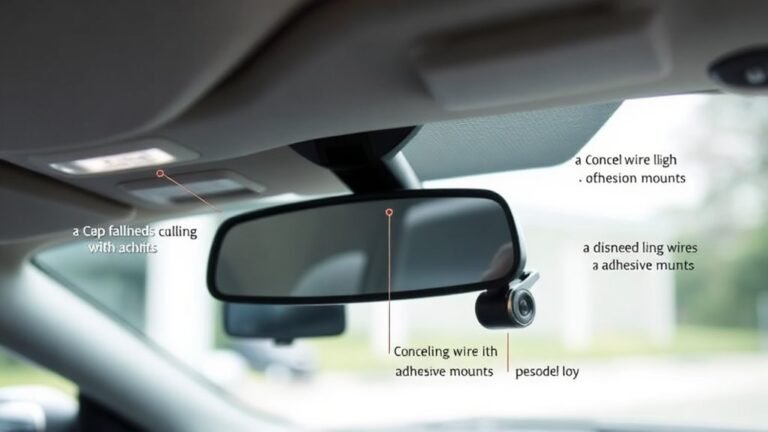
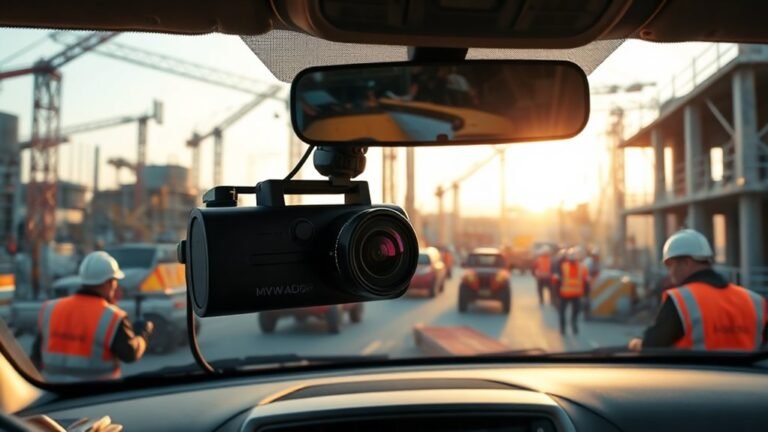
Do Dash Cams Record Audio?
Yes, many dash cams record audio, either by default or through a setting you can turn on or off. This means you might capture conversations, road noise, sirens, and other sounds inside or around your car. Having audio can be helpful for evidence or just understanding what happened during a drive.
Audio settings vary by model, firmware, and region, so you shouldn’t assume it’s on or off until you check. Usually, you can find the microphone option in the dash cam’s menu or app. It’s worth taking a moment to look this over before you hit the road, so you know exactly what’s being recorded.
Key Takeaways
- Many dash cams do record audio through a built-in microphone, but it really depends on the model and settings. Some have it on by default, while others might have it turned off.
- You can usually toggle audio recording in the menu or app, so it’s worth checking there. Dash cam audio can pick up voices, road noise, sirens, and other sounds inside or around your vehicle.
- To find out if your dash cam is recording audio, look for a mic icon, check the manual, or open the companion app. It’s pretty easy to figure out once you know where to look.
- Keep in mind though, audio recording laws vary depending on where you live. So, it’s a good idea to verify local consent rules before you use it.
Do Dash Cams Record Audio?
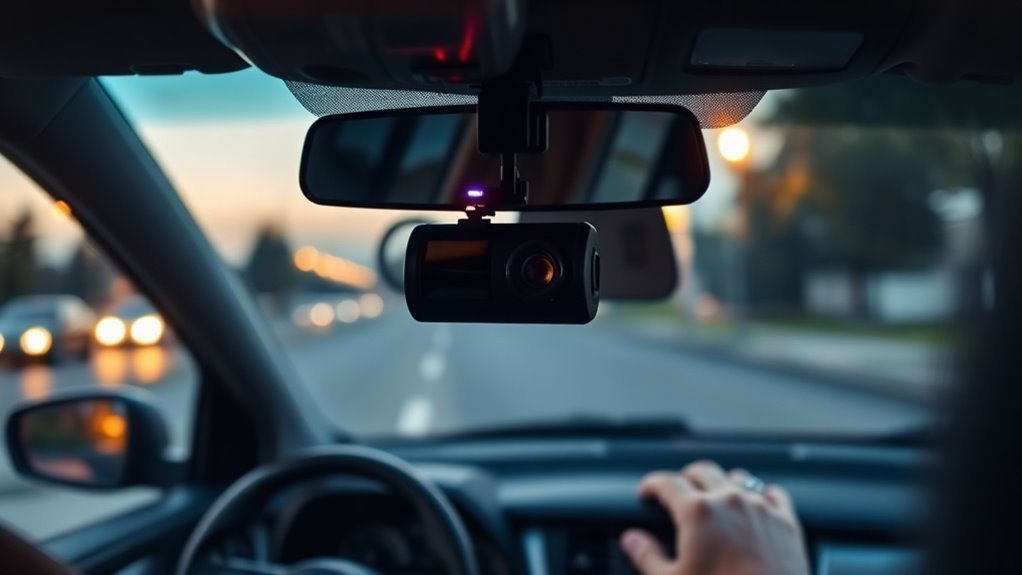
Yes—many dash cams do record audio, either by default or through an optional setting you can turn on or off. When you enable it, your camera can capture conversations, road noise, and other sounds inside or around your vehicle.
This audio can add context to video footage, which may help if you need to explain an incident, prove what was said, or show what happened during a stop or collision. You should check your dash cam’s menu or app to see whether audio recording is available.
Some models use a built-in microphone, while others let you disable sound for privacy. If you want clearer evidence, audio can be useful, but you should always consider local laws and the privacy of passengers before recording.
Is Dash Cam Audio On by Default?
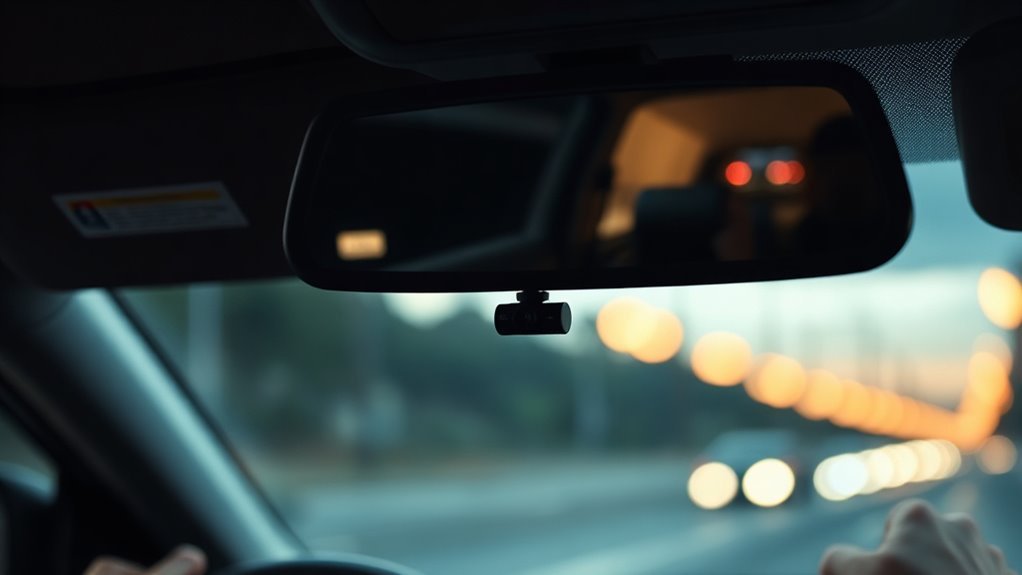
Your dash cam may have audio turned on by default, but that depends on the model and its settings. Most units include a built-in mic, so you’ll want to check whether it’s active before you start driving.
You can usually confirm audio capture in the menu or by recording a short clip and playing it back. It’s a quick way to make sure everything’s working the way you want.
Default Audio Settings
Dash cam audio settings vary by model, so you can’t assume the microphone is on by default. You should check the menu before you drive, because some units start with sound enabled while others keep it off until you turn it on.
Look for an audio, microphone, or sound option in the settings screen, and confirm the status after each reset or firmware update. If you want privacy, disable recording yourself rather than guessing.
If you need voice notes or cabin audio, make sure the setting stays active after power cycles. A quick test helps: speak near the camera, then review the file to see whether sound saved.
That simple check tells you how your dash cam handles audio today.
Built-In Mic Status
Most dash cams don’t have the built-in mic enabled by default, though some models do ship with audio recording turned on. You can’t assume yours is silent just because video works normally.
If your camera includes a microphone, it may capture conversations, road noise, and other sounds as soon as it powers up. That’s why you should treat the mic setting as part of your initial setup, not an afterthought.
Manufacturers often leave the factory setting dependent on the model, firmware, or region. So, if you’re buying a new dash cam, check whether audio starts active or stays off until you enable it.
This helps you avoid unexpected recording and makes sure the device matches your comfort level from day one. It’s a simple step but can save you from surprises later on.
Checking Audio Capture
To find out whether audio is on by default, check your dash cam’s menu or quick settings and look for a microphone, speaker, or sound-recording icon. If you see one, audio may already be active, but you should still verify the status on the screen or in the app.
Many dash cams ship with the mic enabled, while others mute it until you turn it on. Tap the audio icon, review the recording indicator, and test it by speaking near the camera, then play the file back.
If you don’t hear anything, inspect the settings for mute, privacy, or loop-recording options that can disable sound. Also, confirm the firmware hasn’t changed your default capture settings after an update.
How to Turn Dash Cam Audio On or Off
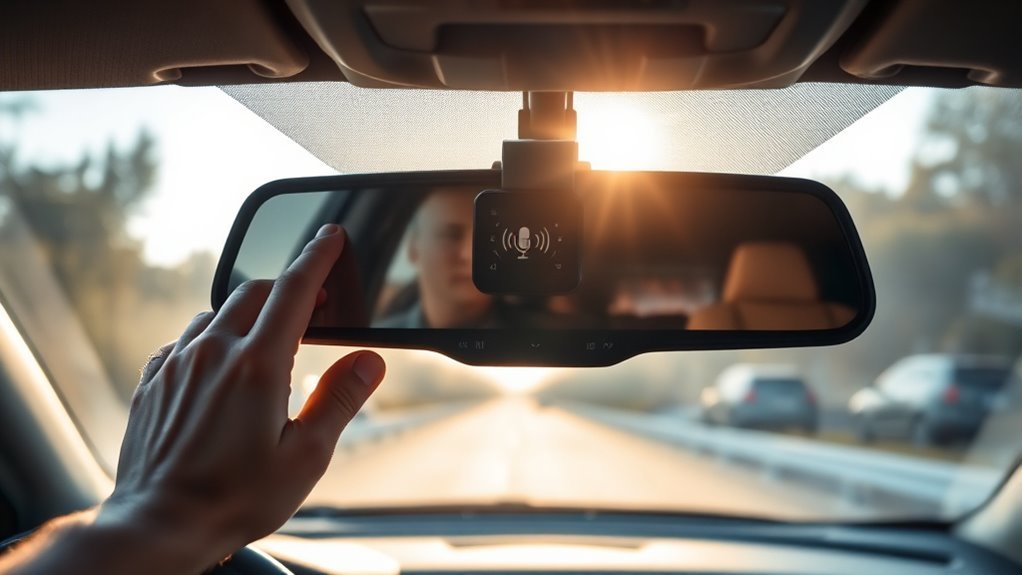
You can usually switch dash cam audio on or off in the camera’s settings menu, through its companion app, or with a dedicated audio button on the device itself. If you’re using the menu, open audio or recording settings and toggle the microphone option.
On an app, connect your phone, then look for sound or privacy controls. If your model has a button, press it until the status icon changes.
- Check the manual for the exact setting name.
- Confirm the change before you start driving.
- Watch for an on-screen mic symbol.
- Test the setting with a short recording.
If you share the camera with others, make sure everyone knows the default audio setting. It helps avoid any surprises when someone else uses it.
What Sounds Can a Dash Cam Capture?
A dash cam can usually capture voices inside the car, road noise, horns, sirens, engine sounds, and nearby traffic, depending on how sensitive its microphone is. You’ll often hear conversations clearly if the cabin is quiet and the mic sits close to you.
Wind, tire hum, and rattling trim can also show up, especially at highway speeds. If your windows are open, outside noise can overpower speech and make details harder to hear.
Some models pick up sharp sounds like sudden braking, impacts, or a honk better than soft chatter. Audio quality varies by camera placement, cabin layout, and microphone quality.
If you want cleaner recordings, mount the camera securely, keep the windshield clean, and test the sound before you drive. It really helps to make sure everything sounds clear before hitting the road.
Is Dash Cam Audio Recording Legal?
Dash cam audio recording is legal in some places and restricted in others, so the rules depend on where you drive. You need to check your local laws before you rely on microphone features, because privacy rules can treat audio differently from video.
Dash cam audio rules vary by location, so check local laws before using microphone features.
Some areas allow you to record if you’re part of the conversation, while others require consent from everyone nearby. When you cross state or national borders, the legal standard can change fast.
- Review your jurisdiction’s recording laws.
- Ask passengers before you capture audio.
- Turn audio off if consent isn’t clear.
- Use signage or verbal notice when needed.
If you ignore the rules, you could face fines, evidence issues, or privacy complaints. So, it’s always best to be cautious and make sure you’re following the law.
How to Tell if Your Dash Cam Is Recording?
Once you’ve confirmed the audio rules in your area, the next step is making sure your dash cam is actually recording. Check the screen or status lights first; most models show a red dot, blinking icon, or “REC” symbol when they’re active.
If your camera has a voice prompt, listen for startup or recording alerts. You can also test it by speaking near the camera, then playing back the file later to see whether your voice appears.
Review the memory card for new clips with current timestamps, since locked or missing files can signal a problem. Finally, glance at the power source and mount connection, because loose cables can stop recording without obvious warning.
A quick routine check before driving can save you from losing important footage. It’s a simple step that can make all the difference!
Frequently Asked Questions
Can Dash Cam Audio Be Turned off Permanently?
Yes, you can usually turn it off permanently in your dash cam’s settings, or disable the microphone in the app.
If yours won’t save the setting, you’ll need to check the manual or update the firmware.
Sometimes, a quick update can fix the issue and let you keep the audio off for good. If not, the manual often has some handy tips to try.
Do All Dash Cams Have Microphones?
No, not all dash cams have microphones. You’ll find some whisper, others stay mute, so check specs before buying.
Even sleek models can hide audio features, and settings often let you switch recording off. It’s always good to double-check before you hit record!
Does Audio Recording Drain Dash Cam Battery Faster?
Yes, audio recording can drain your dash cam’s battery a bit faster because it uses extra power. You’ll usually notice a small difference, though.
Heat, screen use, and parking mode often affect battery life more. So, while audio does play a role, it’s usually not the biggest factor.
Can Dash Cam Audio Be Remotely Disabled?
Yes, you can sometimes disable it remotely through the app or settings, if your dash cam supports that feature.
You’ll need access permissions, and some models don’t offer remote audio controls.
Will Recorded Audio Be Saved With Video?
Yes—if you’ve enabled audio recording, your dash cam usually saves sound with video. You’ll hear voices, traffic, and impacts.
If you turn audio off, it won’t save. Unless your model handles files differently, then it might be a bit different.
Conclusion
So, do dash cams record audio? In many cases, yes—but whether yours does depends on the model and your settings. You can usually turn the microphone on or off with a quick change in the menu.
Just remember to check your local laws before using audio recording. After all, what good is a dash cam if you don’t know exactly what it’s capturing?
Keep your settings in mind, and you’ll stay informed and protected. Understanding if your dash cam records audio helps you make the most of its features and ensures you comply with legal requirements. So, always double-check your device and settings to get clear video and audio evidence when you need it most.